Site-Layer
A SiteLayer is a type of PointLayer and has all the same attributes, properties and capabilities of a PointLayer plus several of its own.
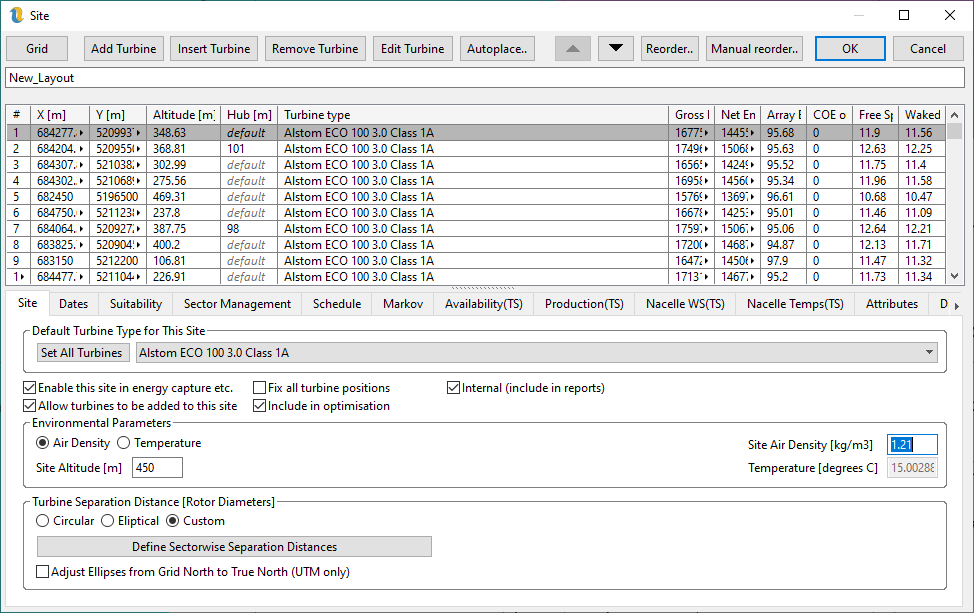
Figure 1: SiteLayer Properties: Site Tab
Many of the aspects of a SiteLayer that distinguish it from a PointLayer are contained in the first tab of the SiteLayer properties dialog:
Default Turbine Type for This Site - Whenever a new point is added to this layer, it will default to the current chosen turbine type specified here.
Set All Turbines - This changes the turbine types for all points in this layer to the current default turbine type.
Enable this site in energy capture etc. - This effectively switches this Site Layer on or off. When off, the points in this SiteLayer will not be included in the Noise, Visual Impact, Shadow Flicker, Energy Capture or Optimisation. (This can also be changed by right-clicking on the SiteLayer in the tree-view and choosing Enable/Disable.)
Fix all turbine positions - This determines whether or not the optimiser is allowed to move the turbines contained in this SiteLayer.
Allow turbines to be added to this site - This determines whether this site is to have turbines dynamically added to it as part of the Optimisation process.
Include in Optimisation - This option determines whether or not the net energy generated by the site should be considered in the Optimisation. The optimiser works to increase the aggregate energy yield or decrease the combined cost of energy for all the projects included in the optimisation. If you are modelling a competitor’s site and are not concerned with the impact of your turbine waking theirs (careful!) then you will want to include their site in the energy capture but omit it from the optimisation.
Internal - Use this option to delineate external from internal projects. Internal site layers are the ones which you are developing and are interested in and want your reports to focus on. External site layers are included purely to see the impact on array losses or combined environmental impacts. Only results from internal site layers are detailed in Openwind’s reports.
Environmental Parameters -This allows users to specify either the air density or the air temperature at the site along with the altitude at which measurements were taken.
Turbine Separation Distance - This allows users to specify the separation distance for the turbines in this layer as either a circle or an ellipse, along with the number of rotor diameters and the bearing of the major axis of the ellipse where applicable. The custom option allows for separation distances to be specified on a sector-wise basis with user-defined number of sectors. When displaying circular or elliptical separation distances, Openwind shows half the separation distance so that the separation distances do not overlap. In the case of custom separation distances, the full distance is shown.
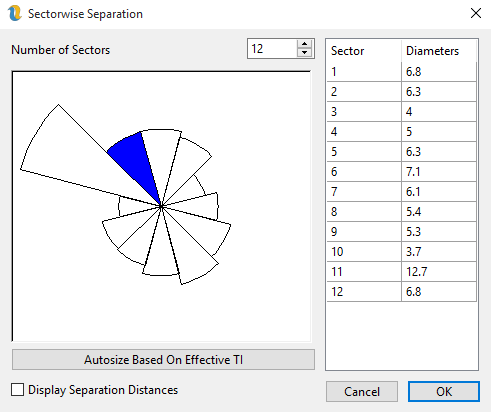
Figure 2: Custom Separation Distances
Sector-wise separation distances can be specified based on the effective TI and attempting to mitigate the wake-induced part of the effective TI such that the effective TI at the met mast location meets the IEC standard for the chosen class of turbine. Pressing the autosize button activates the dialog shown in figure 2.
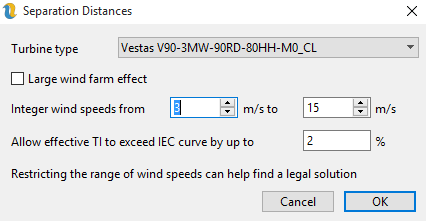
Figure 3: Settings for auto-sizing of sector-wise separation distances
The auto-sizing of separation distances uses the current effective TI settings regardless of whether effective TI is enabled or not. A site layer can contain multiple turbine types and so it is necessary to specify which turbine type should be considered when calculating separation distances. Users can choose to include the large wind farm effect or not and can choose to restrict the range of wind speeds which are checked for compliance. In cases where the ambient TI is already close to or above the IEC curve, it may not be possible to meet the standard. For this reason it is possible to specify a leeway of several percent.
- Adjust Ellipses from Grid North to True North (UTM only) - this option corrects the bearings of the separation distances from grid north to true north. Generally speaking, the measurement of wind direction is not accurate enough to warrant such a fine adjustment (<3 degrees). This function is really included to give compatibility with ellipses drawn in external GIS software.
The Dates tab allows a site layer to be temporally limited. This can come in handy when removing wake effects from one or more met masts that have been in place for a period during which turbines have either been added, decommissioned or repowered.
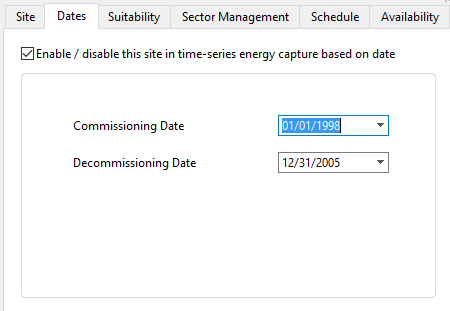
Figure 4: Sitelayer Dates Tab
If dates are enabled, the site layer only exists in energy captures for the period between the commissioning and decommissioning dates. Outside of this period the turbine in this site layer do not exist and do not show up in any models. For cases where a site is repowered, two site layers should be used; one for before the repowering and one afterwards.
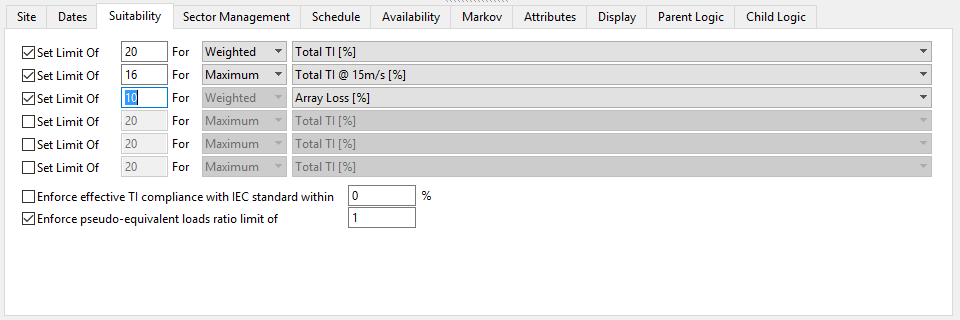
Figure 5: Suitability Tests
The suitability tab can be used to set site suitability limits for optimisation and testing. Ideally, the turbine separation distances and/or sector management would be used to ensure site suitability as, at present, the site suitability limits are only checked after the energy capture has been run (we plan to improve this behaviour in a future update) and so they can negatively impact the performance of the optimisation algorithm.
The Display tab of the SiteLayer properties has an additional button for Display As Rose. This button pops up the Display As Rose dialog:
- Display As Rose – this enables displaying turbine points as roses which illustrate various aspects of their energy capture
- Add / Overlay – this determines whether the two fields will be added together (add) or drawn on top of each other (overlay)
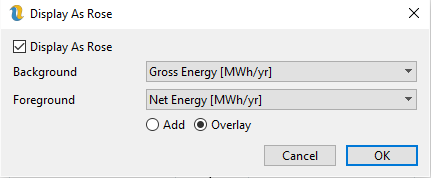
Figure 6: Display As Rose Dialog
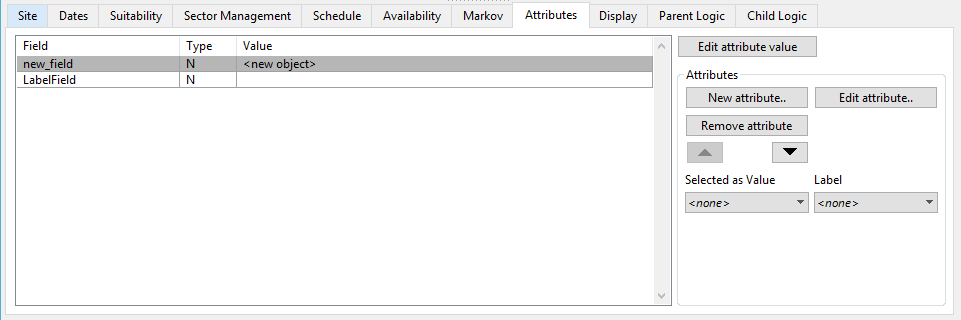
Figure 7: SiteLayer Attributes
The site layer attributes tab is similar in functionality to the standard point-layer attributes tab.
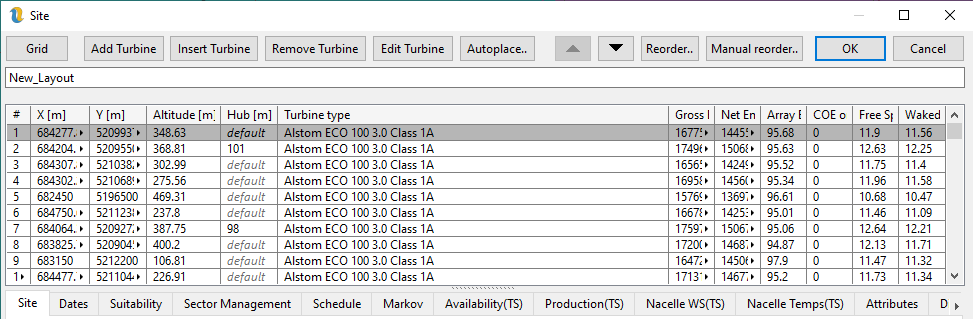
Figure 8: SiteLayer Properties: The Turbines List
A recent change is the move to having the list of turbines visible at all times above the more familiar layer properties tabs. The turbine list shows features which were previously in the Turbines tab and the Turbine Coordinates tab as well as taking over the responsibility for reordering from the Attributes tab. The columns in the turbine list:
- Index – this is the turbine object index
- X - the x coordinate of this turbine point in meters
- Y - the y coordinate of this turbine point in meters
- Altitude - if this layer has access to one or more terrain elevation layers, this box displays the estimated elevation of the turbine base
- Hub Height - if no value is entered here then the default hub height specified in the selected turbine type is used. Selecting a cell and entering a value will cause the default turbine type hub height to be overridden for that turbine. In figure 8 above, it can be seen that turbines 2 and 7 have overridden hub heights. To go back to the turbine type default, simply delete the overridden value.
- Turbine Type - the type of turbine this is.
- **Fixed **- whether or not the optimiser is allowed to move this turbine (if the option to Fix All Turbines is checked on the Site tab, the option is ignored)
- Gross Energy, Net Energy, Array Efficiency, COE, Free Speed, Waked Speed - these values cannot be edited and are for information purposes only. These values will be displayed based on the most recent energy capture report that was run.
Clicking on the column headers can be used to order the turbines according to the values in the column. It is possible to sort by more than one column by clicking on one column header (the less important one) and then another. The up and down arrows can be used to move individual turbines up or down the list. Once the list is in the desired order, pressing the Reorder button will apply this order to the underlying layer.
- Grid – switches from the turbine list described above, to a grid of turbine attributes including the layer attributes and sector management strategy.
- Add Turbine – this appends a single turbine to the end of the turbine list and gives it the highest object index. The new turbine has the same coordinates as the currently selected turbine before pressing the button. Any attributes are filled with default values.
- Insert Turbine – this inserts a turbine before the currently selected turbine. The new turbine has the same coordinates as the currently selected turbine and any attributes are filled with default values.
- Remove Turbine – removes the currently selected turbine.
- Edit Turbine – this puts the currently selected turbine into edit mode. This allows direct editing of the turbine coordinates and manual selection of the turbine type for that turbine.
- Autoplace – this is a way of quickly adding or deleting a number of turbines in a fairly arbitrary fashion (figure 9). If the desired number of turbines is greater than that already in the site layer then the additional turbines are added in random locations. If the desired number of turbine is less than those already in the layer then the user must choose which turbine to delete. Those with the lowest indices, those with the highest indices or just at random. The order in the list does not matter unless the reorder button has been pressed to reassign indices in the order of the list.
- Manual Reorder – this is the same as pressing OK in that it applies any changes that have been made in the site layer properties before placing the user into manual reordering mode. Once in this mode the first turbine clicked will be index 1, the second turbine clicked will be turbine index 2 and so on. Clicking on a different layer in the tree view will terminate this process. Instructions are displayed on screen in addition to here.
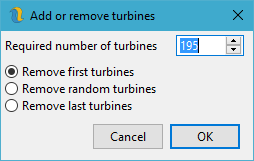
Figure 9: Add or Remove Turbines
The sector management strategy described in figure 10 can be copied and pasted to and from a spreadsheet such as Microsoft Excel. Any checkboxes are copied as 1 when checked and 0 when clear.
The data can be edited in Excel and then copied and pasted back into Openwind. In order to select multiple cells in a grid in Openwind, left-click on the first cell and then hold down the control (Ctrl) key and use the cursor or a second mouse click to choose the selection. Ctrl+C can be used to copy and Ctrl+V can be used to paste.
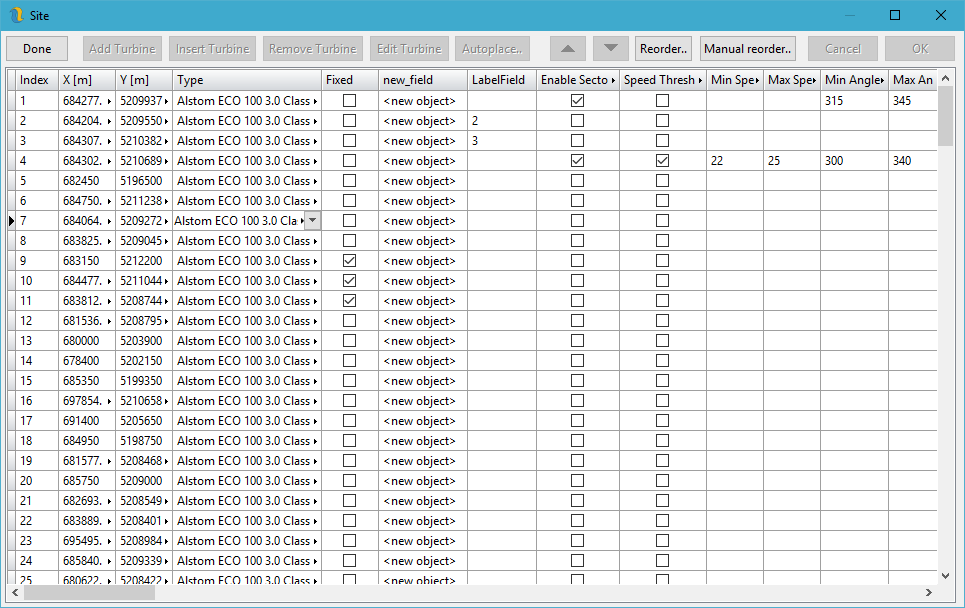
Figure 10: SiteLayer Properties: The Edit Attributes Grid
If there are a list of turbine positions in text format, they can be copied and pasted (as appended) from a spreadsheet into the grid interface above.